You open Screen Time on a Sunday and the weekly number looks back at you. Most of it went to two or three apps you don't even remember enjoying. If you want to reduce screen time on iPhone as an adult, you don't need a parental control setup or a new phone. You need a few settings in the right order, and an honest answer to one question: will you respect a limit you can dismiss with one tap?
This guide covers the free settings first, step by step, then the small design changes that make your phone less sticky, and finally what to do if the built-in limits are too easy to ignore.
Step 1: Look at your real numbers first
The best first step to reduce screen time is to see where it actually goes. Open Settings > Screen Time and look at the activity for the last week. Note three things:
- The top three apps by time. These are where limits will matter.
- When the time happens. Mornings in bed, the commute, late evening.
- What you would rather do with one hour of it. Reading, sleep, a walk, a call.
Write the third one down. A limit that only takes something away is hard to keep. A limit that makes room for something you want is much easier.
Step 2: Set limits with Screen Time (iOS 26 and iOS 27)
Apple changed how Screen Time limits work in iOS 27, so the menu names you see depend on your iOS version. Both versions are below, based on Apple's iPhone User Guide for iOS 26 and iOS 27.
On iOS 26: Downtime and App Limits
- Go to Settings > Screen Time. Turn on App & Website Activity if it is off.
- Tap Downtime. Choose Turn On Downtime Until Tomorrow, or tap Scheduled and set start and end times. Customize Days lets weekends differ.
- Go back and tap App Limits > Add Limit. Pick a category like Social Networking, or tap into it to pick single apps. Tap Next, set a daily time and confirm.
- Tap Always Allowed and keep the apps and contacts you need at all times, like Phone, Messages or Maps.
On iOS 27: Screen Time Schedules and Time Allowances
- Go to Settings > Screen Time > Screen Time Schedule and turn on Schedule.
- Tap Add Schedule, choose the days, then set time windows such as work, dinner and evening.
- Go to Settings > Screen Time > Time Allowances. Set a daily total and an allowance for categories like Entertainment, Games or Social Media.
- Turn on Match Screen Time Schedule if you want allowances to follow your time windows, and set Always Allowed for the apps and people you always need.
Apple notes that Screen Time Schedules and Time Allowances need iOS 27 or later on all your Apple devices, so an older iPad or Mac in your account can keep you on the iOS 26 style for now.
A tip for either version
Start with limits that feel slightly too generous. A 30 minute daily limit you keep beats a 10 minute limit you override every day.
Step 3: Decide what happens when the limit is reached
The limit only works if reaching it changes something, and by default it often does not. Apple's iOS 26 guide says it plainly: "By default, Screen Time limits can be ignored once reached." When a limit runs out, you can choose to keep going, and late in the evening most of us do.
Apple's fix is a Screen Time passcode. With a passcode set, you can turn on Block at Downtime, and apps that are not allowed can't be opened during downtime. For an adult, the catch is obvious: if you know the passcode, the wall is only as strong as your mood at 23:00. Some people ask a partner or friend to set the code for them. That works, but it also means asking someone else every time you need an exception.
If you have tried this and found yourself tapping "ignore" again and again, you are not alone. We explain the pattern in more detail in why Screen Time limits are so easy to ignore.
Step 4: Make the phone less inviting
Small changes to how the phone looks and sounds cut screen time without any limits at all, because they take away the cues that start a session.
Grayscale. Go to Settings > Accessibility > Display & Text Size > Color Filters, turn them on and pick Grayscale. Feeds and icons lose a lot of their pull in black and white. Many people turn it on for evenings only.
Notifications. In Settings > Notifications, turn off everything from social apps, shopping and games. Keep people, calendar and the few alerts you act on. Use Scheduled Summary to collect the rest at two or three fixed times a day. Turn off badges for anything that is not urgent.
A quieter Home Screen. Your first Home Screen decides what your thumb opens. Try this layout:
| Home Screen page | What goes there |
|---|---|
| Page 1 | Tools only: Phone, Messages, Maps, Calendar, Camera, a reading widget |
| Dock | The four tools you use most, none of them feeds |
| Last page or App Library | Social media, video, news, games |
You can still find any app by searching. You just stop landing in them by accident.
Locked apps. On recent iOS versions you can touch and hold an app and choose Require Face ID (or Touch ID or Passcode). Apple's guide notes the app locks again after you quit it. This is built for privacy, not screen time, so it adds a small pause rather than a limit.
Step 5: Add a gate that asks for more than a tap
If the built-in limits keep losing to one tap, the next step is an app that makes opening your top apps cost something. Screen Time apps from other developers use Apple's Screen Time technology but decide differently how you get back in. Some ask you to wait or breathe, some need a physical device, some let you earn minutes with an activity.
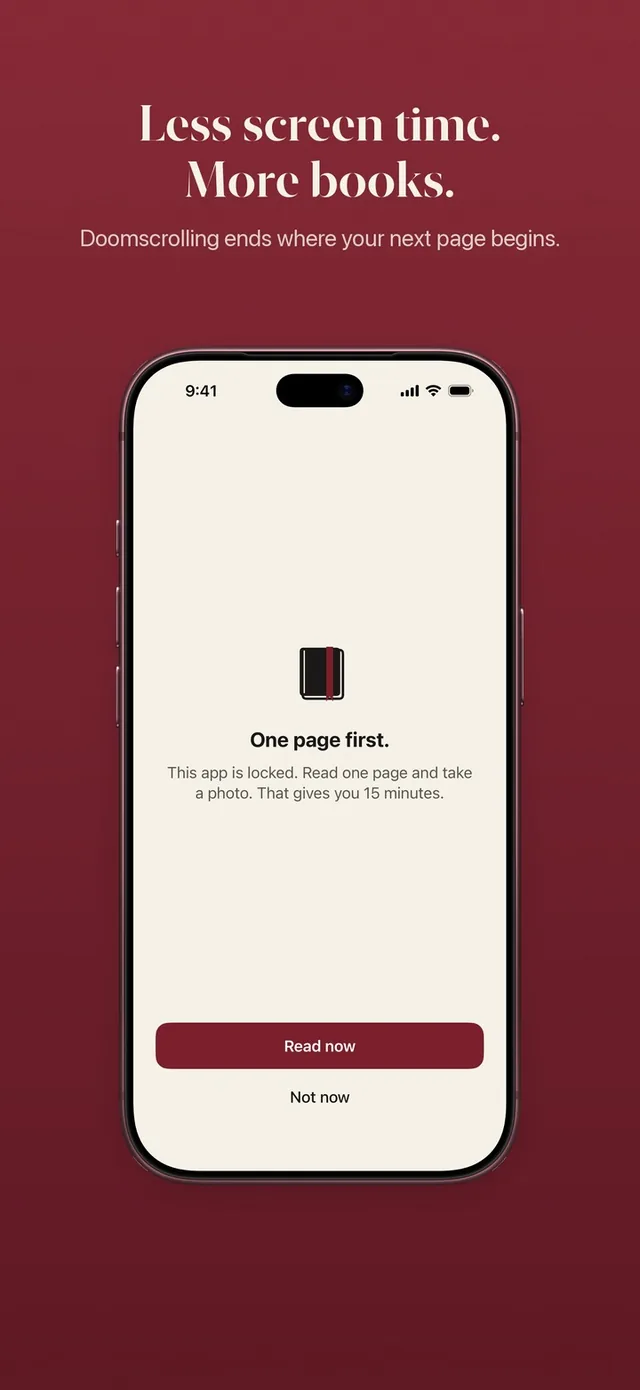
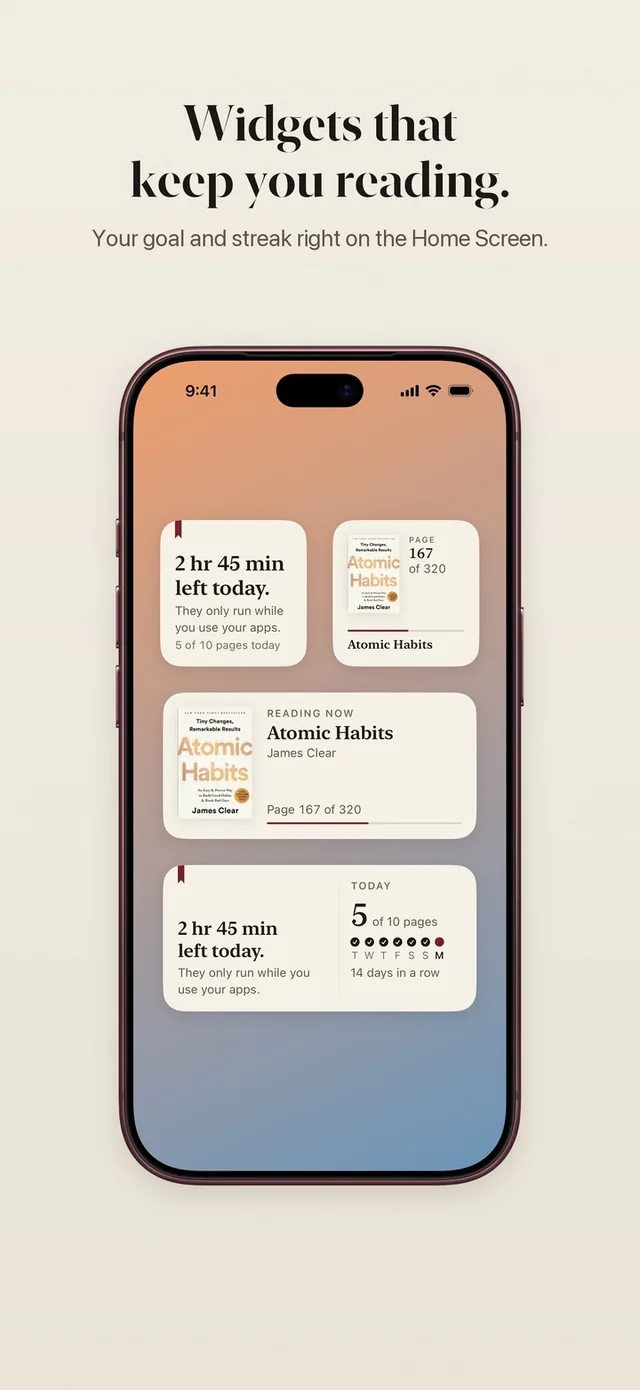
ReadFirst is our app, and it uses reading as the way back in. You choose the apps and websites to lock. To open them, you read a page of a printed book and take a live photo of the last page you read. The page is checked on your iPhone and the photo is never saved. Your rule decides how many minutes each page gives you, for example one page for 15 minutes, and those minutes only run while you use the locked apps. You can see how it works on the read to unlock page.
The difference from a plain limit is what happens at the moment you want to give in. With Screen Time, the easy choice is "ignore." With ReadFirst, the way in is a page, apart from a few skips a week you choose yourself, so the moment you most wanted to scroll becomes a few minutes with a book. Over weeks, those pages add up to finished books, which is a better thing to show for your evenings than a weekly screen time number.
If you want to compare options first, our list of the best app blockers for iPhone covers the main ones and who each suits, and our page on Apple Screen Time alternatives compares the built-in tools with ReadFirst directly.
A simple plan to reduce screen time this week
Use one week to set up a system, then let it run. Each step takes a few minutes.
- Monday: Check your Screen Time report. Write down your top three apps and the one thing you want more time for.
- Tuesday: Turn off notifications from social, shopping and games apps. Set up Scheduled Summary.
- Wednesday: Rebuild your first Home Screen with tools only. Move the feeds to the last page.
- Thursday: Set limits for your top three apps with App Limits or Time Allowances, depending on your iOS version.
- Friday: Turn on grayscale for the evening.
- Saturday: Notice where you overrode a limit. If it happened more than once, add a harder gate for that app.
- Sunday: Compare your weekly total with last week. Keep what worked.
Less screen time is the means, not the goal. The goal is the hour you get back and what you do with it. If you want that hour to turn into reading, ReadFirst makes a page of your book the way into your feeds, so every evening you scroll a little less and read a little more.
Frequently asked questions
What is the best way to reduce screen time on iPhone?
Combine built-in Screen Time limits with fewer notifications, grayscale and a Home Screen without feeds on the first page. If you keep ignoring your limits, add an app that puts a harder step in front of the apps you overuse.
Can I stop myself from ignoring Screen Time limits?
On iOS 26, Apple says limits can be ignored by default and a Screen Time passcode lets you block apps during downtime. If you set the passcode yourself, you still know it, so many adults ask someone else to set it or use a separate app with a stricter gate.
What changed in Screen Time in iOS 27?
iOS 27 adds Screen Time Schedules, with time windows across the day, and Time Allowances for categories like Entertainment, Games and Social Media plus a daily total. Apple says these need iOS 27 or later on all your Apple devices.
Does grayscale really reduce screen time?
It does not block anything, but many people find feeds and icons less tempting in black and white. It costs nothing to try for a week in the evenings.
How does ReadFirst reduce screen time?
It locks the apps you choose with Apple Screen Time and opens them only after you read a page of a printed book and take a live photo of it. Each page gives the minutes your rule sets, and minutes only run while you use the locked apps.