You set a one-hour limit for social apps. You feel good about it. Then, at 9:40 pm, the limit screen appears, and your thumb taps past the limit screen before your brain has caught up. By the end of the week, the limit is a speed bump you no longer notice.
If that sounds familiar, the problem is not your discipline. The limit screen is doing exactly what it was designed to do. This guide explains why the limit gives way so easily, what you can change in Settings, and which options work better when you really want a limit to hold.
Why the Screen Time ignore limit is so easy to tap
Screen Time limits on iPhone are built as reminders for adults, not locks. When you reach an App Limit, iPhone shows a screen that tells you the time is up, and offers a way past it, such as asking for more time. The exact buttons depend on your iOS version.
Apple says this plainly. In its iPhone User Guide for iOS 26, a note reads: "By default, Screen Time limits can be ignored once reached." (Apple Support: Set schedules with Screen Time). The same page explains that if Block at Downtime is off, "you see a reminder that it's downtime, but you can choose to continue using the apps."
That design makes sense for many people. Some adults only want a nudge. But if you set a limit because you want help in the moments your willpower is lowest, a one-tap exit tends to win.
Why one tap beats good intentions
A limit with an easy way out asks you to make a fresh decision at the worst possible moment. You are tired, the feed is right there, and saying no costs effort while saying yes costs one tap.
Three things work against you:
- The tap is faster than the thought. After a few days, tapping past the limit becomes a reflex, like closing a pop-up.
- The cost is invisible. Fifteen more minutes feels like nothing. Four times a night, it is an hour.
- Nothing replaces the scroll. The limit takes something away but gives you nothing else to do, so the urge has nowhere to go.
A good limit fixes all three: it slows the reflex, makes the cost feel real, and points you at something better.
What changed in iOS 27
In iOS 27, Apple reorganized these settings into Screen Time Schedules and Time Allowances. Schedules set time windows across your day, like work, dinner and evening. Time Allowances set how long you can use categories such as Entertainment, Games or Social Media, plus a daily total (Apple Support: Set Screen Time Schedules and Time Allowances).
Apple notes that these features need iOS 27 or later on all your Apple devices. The names differ, and what you see when an allowance runs out depends on your iOS version and settings, so check the screen on your own iPhone. The core question stays the same: is there a way past the limit that you can take in a second?
Three ways to make a limit hold
When you want a limit that holds on a tired evening, you have three kinds of options: a passcode you do not know, an app that adds a pause, or a gate that asks for something real.
Option 1: A passcode someone else sets
The strongest built-in fix is a Screen Time passcode that you do not know. With a passcode set, you can turn on Block at Downtime, and restricted apps can't be opened during downtime.
The catch is obvious. If you set the passcode yourself, you know it, and the tired version of you at 11 pm knows it too. It works best when someone else sets it:
- A partner or friend types a passcode you never see.
- You set a random code, write it down, and give the paper to someone you trust.
This is effective and costs nothing. It also has downsides: you have to ask someone each time you need to change a setting, and it can feel like being treated as a child. For many adults, it works for a few weeks and then gets switched off.
Option 2: Apps that add friction
Friction apps put a short pause between you and the app you were about to open. Instead of a wall, you get a moment to notice what you are doing.
Two well-known examples work this way. one sec says on its App Store page that it "DELAYS access to distracting apps instead of blocking apps completely", with a breathing pause before the app opens. ScreenZen adds a wait before opening an app that can grow with each open. Both were checked on the US App Store on 20 October 2026.
Friction is great if a pause is all you need to change your mind. It is gentle, and many people like that. Its limit is that once the pause ends, you are back in the feed, and the time you saved has nothing to fill it. If you want to compare in detail, see our page on one sec and ReadFirst.
Option 3: A gate that costs a page
A third option is a gate that asks for something worth doing before an app opens. Instead of a button, a timer or a breath, the price of the feed is a page of a book.
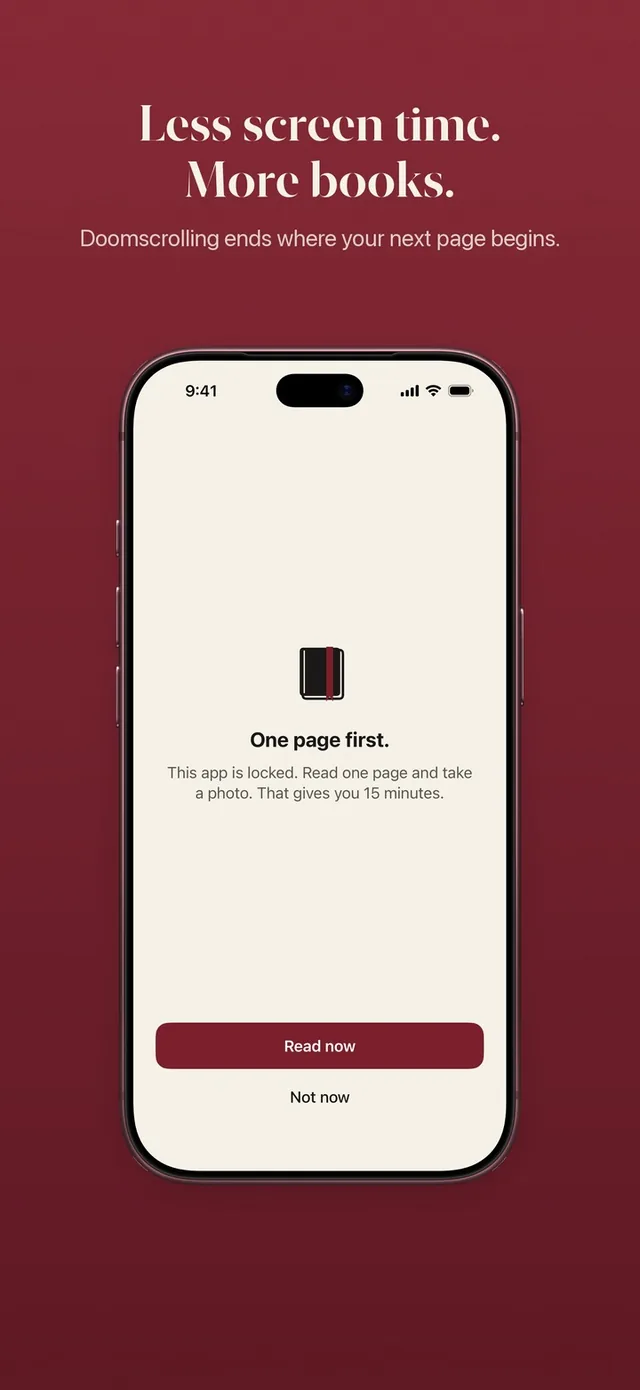
This is how ReadFirst works. You choose the apps (and websites) to lock with Apple Screen Time. When you open one, a shield says "This page can wait." To get in, you read a page of a printed book and take a live photo of it. The page is checked on your iPhone and the photo is never saved. Your apps then open for the minutes your rule gives, for example 15 minutes for one page.
Here is why this holds better than a limit:
- No one-tap exit. The way in is reading, not a button.
- The cost is real but small. One page takes a minute or two. Small enough to keep, real enough that the reflex stops.
- The urge gets a better place to go. Every time you want the feed, you read first. Over weeks, those pages become books.
ReadFirst is honest about exceptions too. You get one skip a week by default (you can choose 0 to 3). A skip waits 10 seconds and opens your apps for at most 15 minutes, so it is there for real emergencies without turning into a new one-tap exit. You can read the full read to unlock walkthrough to see each step.
Which option fits you?
Each option suits a different kind of person and a different level of need.
| Option | Best for | Cost | Holds when you're tired? |
|---|---|---|---|
| Screen Time limit (default) | People who only want a nudge | Built in | Rarely |
| Passcode someone else sets | People with a willing helper | Built in | Yes, until it's switched off |
| Friction app (pause or delay) | People who just need a moment | Varies by app | Sometimes |
| Gate that costs a page | People who want to read more and scroll less | Paid app | Usually, because the way in is reading |
No blocker on iPhone is impossible to get around if you are determined. The goal is not a prison. It is to make the honest path, the one you chose when you were thinking clearly, the easiest one to take. For a broader look at the built-in tools, see our comparison of Apple Screen Time and ReadFirst.
Try this this week
You can test what works for you in seven days.
- Days 1 to 2: Keep your current limit, but count how often you tap past it. Just notice.
- Days 3 to 4: Ask someone to set your Screen Time passcode. See how it feels.
- Days 5 to 7: Put a printed book next to your phone. Each time a limit appears, read one page before deciding anything.
At the end of the week, you will know whether you need a nudge, a wall or a better habit in the place of the scroll. Our guide to reducing screen time on iPhone has more settings to try.
Frequently asked questions
What happens when I reach a Screen Time limit?
By default you can keep using the app, for example for a few more minutes or the rest of the day. Apple's guide notes that Screen Time limits can be ignored once reached.
How do I stop myself from ignoring Screen Time limits?
Use a Screen Time passcode that someone else sets, so more time needs their code. Other options are an app that adds a pause before opening, or an app like ReadFirst that asks you to read a page of a printed book first.
Did iOS 27 remove App Limits?
In iOS 27, Apple's guide describes Screen Time Schedules and Time Allowances, which set time windows and how long you can use categories like Social Media. They need iOS 27 or later on all your Apple devices.
Can ReadFirst be skipped like Screen Time?
ReadFirst has a small number of skips: one a week by default, adjustable from 0 to 3. Each skip waits 10 seconds and opens your apps for at most 15 minutes. Otherwise, the way in is reading a page and taking a live photo of it.