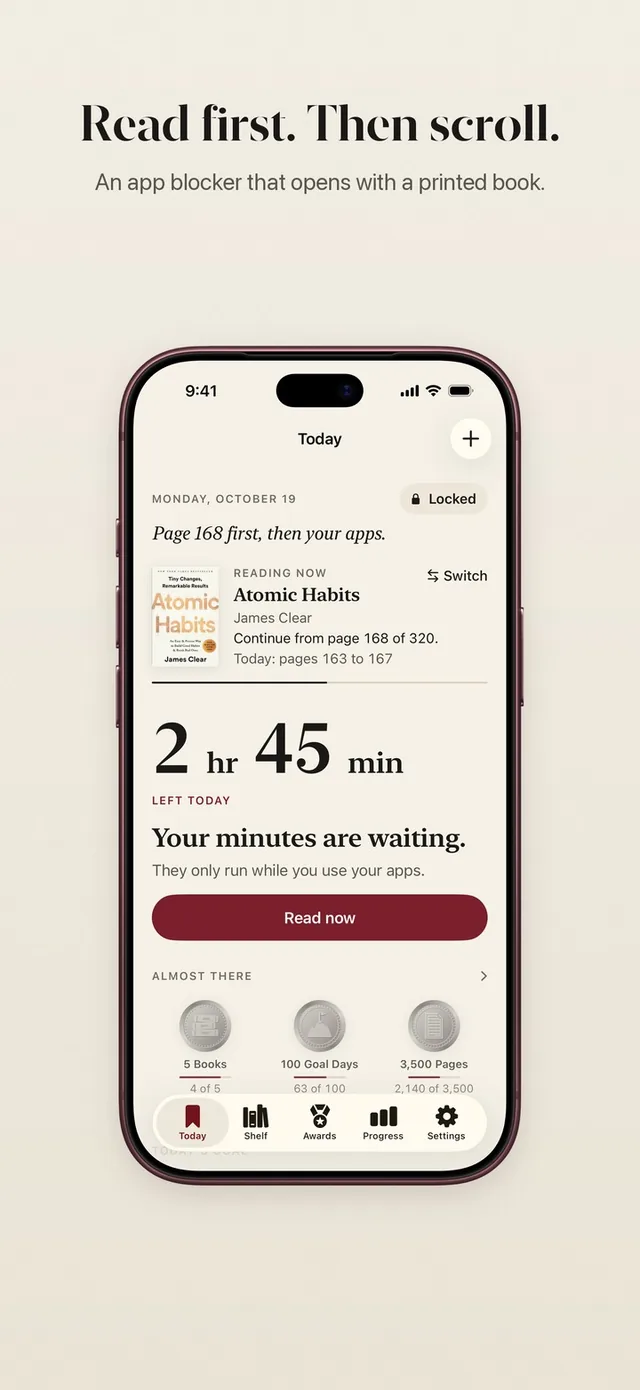
The best reminder to read is the one you see a hundred times a day. ReadFirst's reading tracker widget puts your current book and your next step right where your thumb usually goes looking for the feed.
There are two widgets, each in several sizes, plus a control for Control Center. Together they turn your Home Screen and Lock Screen into a quiet nudge toward the book.
How it works
Adding a ReadFirst widget takes the same steps as any iPhone widget.
- Touch and hold an empty spot on your Home Screen until the apps jiggle.
- Tap Edit, then Add Widget, and search for ReadFirst.
- Pick a widget and a size. Choose "Today" or "Your book".
- Place it where you will see it often, ideally on the first page next to the apps you lock.
- For the Lock Screen, touch and hold the Lock Screen, tap Customize, and add a ReadFirst widget below or above the clock.
The Today widget
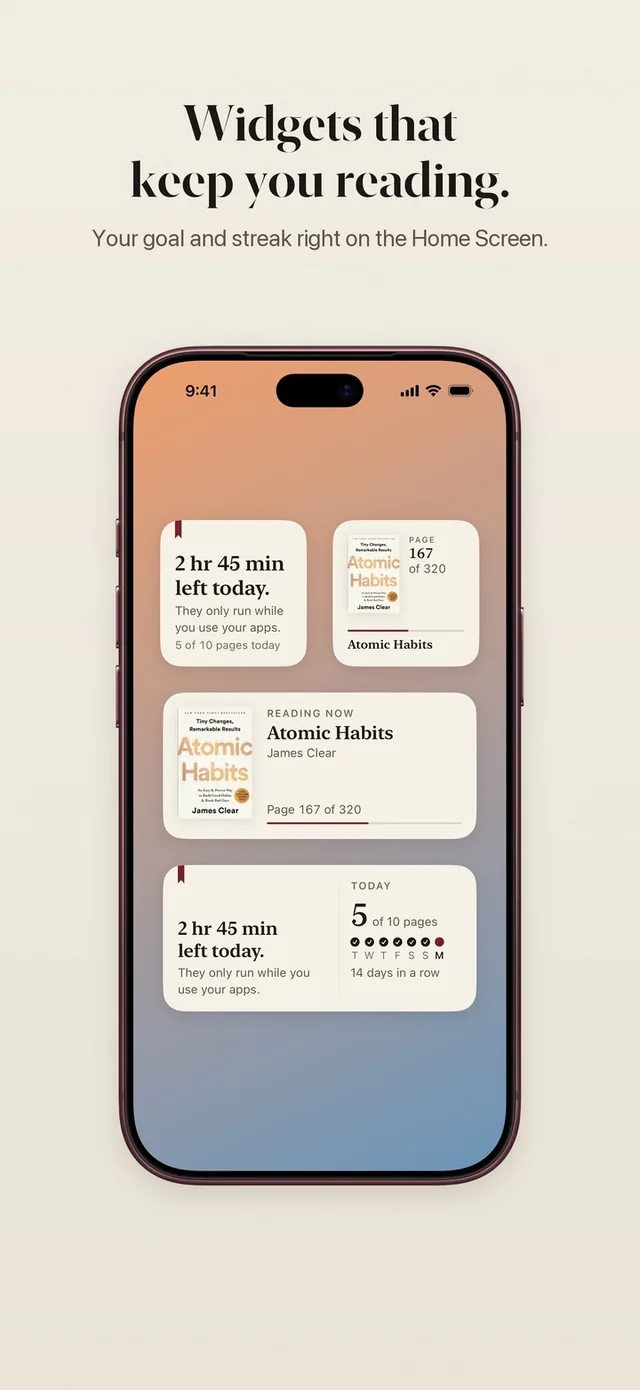
"Today" shows your lock and the next step. It is the widget for people who use the lock every day and like to know where they stand before they reach for an app.
Today comes in these sizes:
| Where | Sizes |
|---|---|
| Home Screen | Small, medium |
| Lock Screen | Circular, rectangular, inline |
The inline style sits in the line above the clock on your Lock Screen, which makes it the quietest reminder of all.
The Your book widget
"Your book" shows the book you are reading, your page and your week. It is a book tracker widget in the classic sense: what you are reading, how far you are, and how your week of reading is going.
| Where | Sizes |
|---|---|
| Home Screen | Small, medium, large |
| Lock Screen | Circular, rectangular |
The large size gives your book the most room. Seeing your book and your page every time you pick up your iPhone is often all the nudge it takes to reach for the book instead of the feed.
Read now from Control Center and the Action button
Besides the widgets, ReadFirst offers a Read now control. Add it to Control Center, put it on your Lock Screen in place of the flashlight or camera, or assign it to the Action button. One press starts the reading clock, with the Live Activity on your Lock Screen and in the Dynamic Island.
You can also touch and hold the ReadFirst app icon and choose Read now, or simply say "Read now" to Siri.
Your reading, always up to date
The widgets update as you read. After a page photo, a page you add by hand or a finished book, your Home Screen reflects the new page and the week. Your books and reading also sync through iCloud, so an iPad and an iPhone show the same story.
Widgets work in Track only too. With your minutes set to 0, every page still counts for your book, your reading streak and your goal, and the widgets show it.
Who it's for
The reading widgets are for anyone who wants the book to be the first thing they see:
- Readers who keep several apps on the first Home Screen page and want one of them to be the book.
- People who check their Lock Screen dozens of times a day and want a gentle reminder there.
- Anyone using ReadFirst as a book tracker for printed books, who likes progress in view.
Frequently asked questions
Does ReadFirst have a widget for the iPhone Lock Screen?
Yes. Both widgets work on the Lock Screen. "Today" comes in circular, rectangular and inline styles, and "Your book" in circular and rectangular styles.
What sizes are the Home Screen widgets?
"Today" comes in small and medium. "Your book" comes in small, medium and large.
What does the Your book widget show?
It shows the book you are reading, your page and your week.
Can I start reading from Control Center?
Yes. Add the Read now control to Control Center, the Lock Screen or the Action button, and one press starts the reading clock.
Do the widgets work on iPad?
Yes. ReadFirst runs on iPhone and iPad with iOS and iPadOS 18 or later, and you can add its widgets to the iPad Home Screen too.