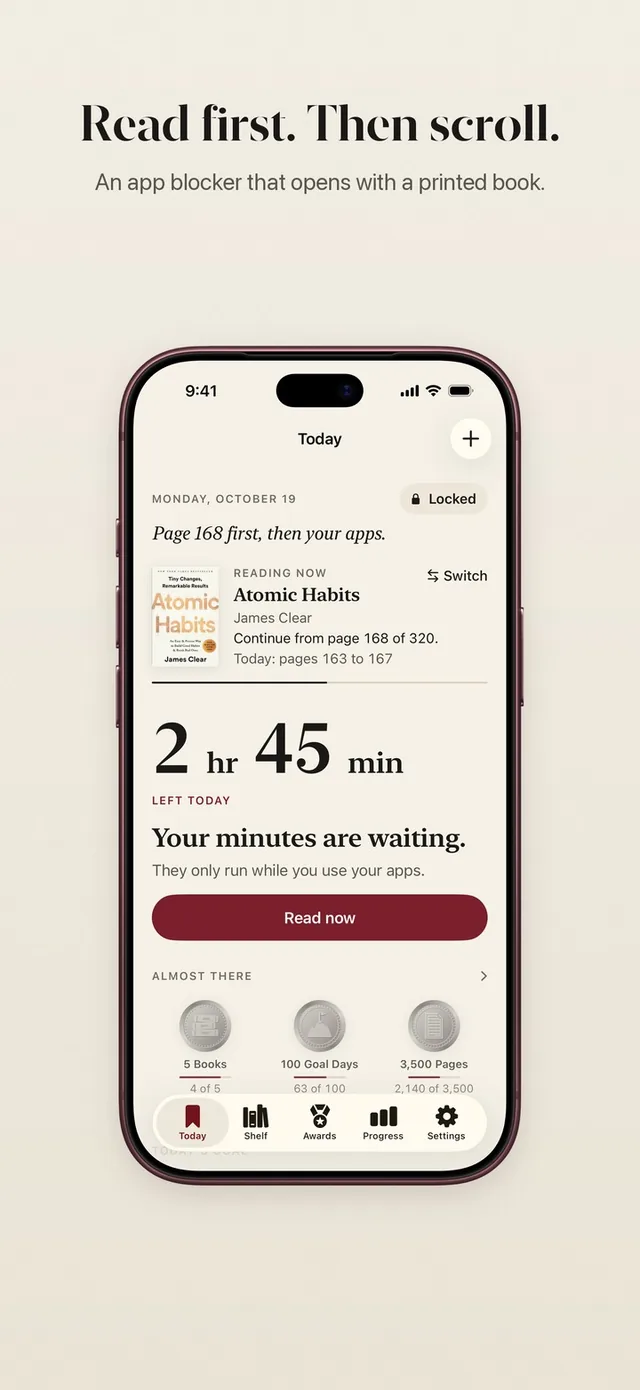
Most people looking for an Apple Screen Time alternative already tried the built-in limits and found themselves tapping past them. The honest short answer: Screen Time is free, built in and good at measuring, but for adults setting limits on their own phone, a limit you can ignore is easy to ignore. ReadFirst keeps the lock and changes the way back in: a page of a real book. We make ReadFirst, so we are not neutral. We checked every fact about Apple Screen Time in Apple's iPhone User Guide on 20 October 2026.
What is Apple Screen Time?
Apple Screen Time is the built-in tool on iPhone, iPad, Mac, Apple Watch and Apple Vision Pro that shows how you use your devices and lets you set limits. It comes with the system, and Apple's pages do not list any extra charge. What you can set depends on your iOS version.
On iOS 26 and earlier, you get Downtime and App Limits. Downtime is a scheduled time when "only calls, messages, and apps you choose to allow are available," with a reminder five minutes before it starts. App Limits set a daily time for a category, such as Games or Social Networking, or for single apps, and you can customize days. Always Allowed keeps chosen apps and contacts available.
On iOS 27, Apple introduced Screen Time Schedules and Time Allowances. Schedules split your day into time windows, like work, dinner and evening. Time Allowances set how long you can use categories such as Entertainment, Games or Social Media, plus a daily total. Apple's guide says you need iOS 27, iPadOS 27, macOS 27 or later on all your Apple devices to use them.
Why Screen Time limits are easy to ignore
Apple's own guide is clear about this. In the iOS 26 User Guide it says: "By default, Screen Time limits can be ignored once reached." To make a limit hold, you turn on Block at Downtime, which needs a Screen Time passcode. Without it, Apple writes, "you see a reminder that it's downtime, but you can choose to continue using the apps."
That design makes sense for a family, where a parent holds the passcode. It works less well when you set the passcode yourself, because you also know it. For many people, getting past the limit screen quickly becomes a reflex. The limit is still there; it just asks nothing of you.
Apple Screen Time vs ReadFirst at a glance
| Apple Screen Time | ReadFirst | |
|---|---|---|
| What it is | Built-in usage reports and limits | An app blocker plus a reading tracker |
| How you get back into your apps | Ignore the limit, or enter the passcode if you set one | Read a page of a printed book and take a live photo of it |
| Reading built in | No | Yes: pages, books, streak, goal, medals |
| Printed books | No | The key to your apps |
| Streaks and goals | Usage reports, no reading goals | Daily page goal, reading streak, 60 medals |
| Price (20 Oct 2026) | Built in, no charge listed | $39.99 a year (3 days free for new subscribers), $7.99 a month or $99.99 one-time purchase |
| Platforms | iPhone, iPad, Mac, Apple Watch, Vision Pro | iPhone and iPad (iOS and iPadOS 18+) |
| Best for | Parents, and a free baseline | Adults who want reading to come before the feed |
Where Apple Screen Time is a great choice
Screen Time is the right tool for parents. With a passcode only you know, limits on a child's iPhone or iPad really hold, and you can manage it all through Family Sharing. No third-party app comes close to that level of system control for families.
It is also free and already on your phone. The weekly report alone is useful: seeing how many hours went to one app is often the first push to change something. And it covers your Mac and Apple Watch too, which ReadFirst does not.
If a gentle reminder is enough for you, Screen Time may be all you need.
Where ReadFirst is different
ReadFirst runs on the same foundation. It uses Apple's Screen Time framework to lock the apps you choose, so the lock is the system's own. What changes is what it takes to get back in.
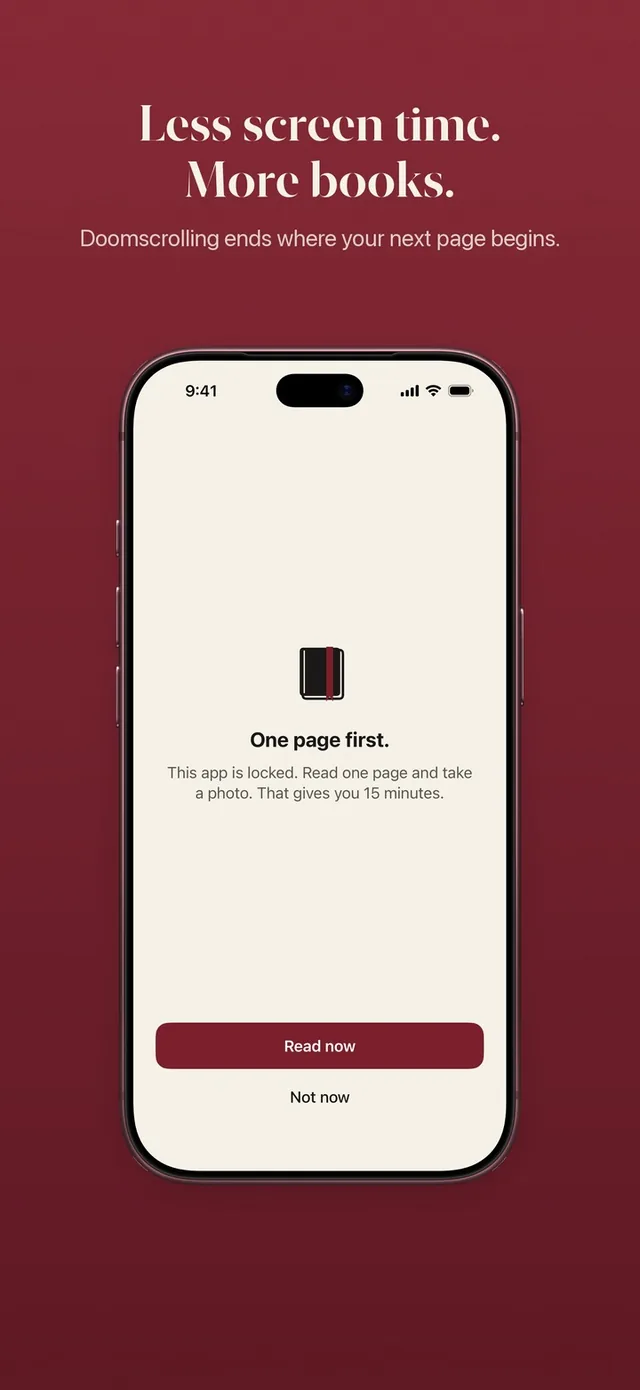
- The way back in is a page, not a tap. Open a locked app and you see a calm screen: "This page can wait." To open your apps, read a page of a printed book and take a live photo of it. There is no ignore button: the only exception is a skip, one a week by default, which waits 10 seconds and opens your apps for at most 15 minutes. See how read to unlock works.
- No passcode games. You don't need someone else to hold a code. The page check happens on your iPhone, rejects photos of screens and catches a page you have already shown. The photo is never saved. More on the page photo check.
- Pages become minutes. You set the rule, for example one page gives you 15 minutes. Those minutes only run while you use the locked apps, so a minute you don't spend stays yours for later that day. See your reading rule.
- Read ahead, scroll later. Extra pages go into a bank of minutes for later that day, up to 5 hours, and the bank empties at midnight. The read-ahead bank lets a morning chapter cover your lunch break.
- It shows you the reader you are becoming. Screen Time tells you how many hours you lost. ReadFirst counts what you gained: pages, finished books, a streak with one grace day a month, widgets and 60 reading medals.
Can you use both?
Yes, and you will, because ReadFirst works through Screen Time. Keep Apple's weekly report to see where your hours go and keep Downtime for the night if it helps you. Let ReadFirst handle the apps that pull you in during the day, so every return to them starts with a page. If you are a parent, keep Screen Time with a passcode for your child's device and use ReadFirst for your own.
Which one should you choose?
Choose Apple Screen Time if:
- you manage a child's device and hold the passcode
- a reminder is enough to make you stop
- you want limits across your Mac and Apple Watch too
Choose ReadFirst if:
- you keep tapping past your own limits
- you want a way back into your apps that leaves you with something, a page read
- you want your reading tracked, with a shelf, a daily goal, a streak and medals
Frequently asked questions
Can you ignore Screen Time limits on iPhone?
Yes, by default. Apple's iPhone User Guide for iOS 26 says Screen Time limits can be ignored once reached, unless you turn on Block at Downtime with a Screen Time passcode.
Does ReadFirst replace Apple Screen Time?
Not exactly. ReadFirst uses Apple's Screen Time framework to lock the apps you choose, and adds a different way to open them: reading a page of a printed book and taking a live photo of it.
Is ReadFirst free like Screen Time?
No. ReadFirst costs $39.99 a year with 3 days free for new subscribers, $7.99 a month or $99.99 as a one-time purchase on the US App Store. There is no free tier.
Does ReadFirst lock my whole phone?
No. Only the apps and websites you choose are locked. Calls, messages, maps and every app you did not pick keep working.
Which iPhones and books does ReadFirst work with?
ReadFirst runs on iPhone and iPad with iOS or iPadOS 18 or later. It works with printed books only, not e-books, and photos of screens do not count.