It is 21:00 and you have decided: no more feed tonight. Then you are on the sofa, the phone is in your hand and the decision you made an hour ago has no say any more. That is why people search for how to lock apps on iPhone until a certain time, or until they have done something first. You want the decision to hold even when you are tired.
There are two kinds of lock. A time lock keeps apps closed until a clock says so. A task lock keeps them closed until you have done something, like a walk or a few pages of a book. iPhone can do the first one on its own. The second one needs an app.
Lock apps until a certain time with Screen Time
Screen Time is the built-in way to lock apps on iPhone for a period of time, and the steps depend on your iOS version. The steps below follow Apple's iPhone User Guide for iOS 26 and iOS 27.
iOS 26: Downtime
Downtime locks every app except the ones you allow, either right now until tomorrow or on a schedule.
- Go to Settings > Screen Time and turn on App & Website Activity if needed.
- Tap Downtime.
- For tonight only, tap Turn On Downtime Until Tomorrow. For every night, tap Scheduled and set a start and end time, for example 21:30 to 7:00.
- In Always Allowed, keep the apps you need, like Phone, Messages and Maps.
To lock only certain apps for part of the day, use App Limits instead: tap App Limits > Add Limit, pick the apps or a category, and set how long you can use them each day.
iOS 27: Screen Time Schedules and Time Allowances
iOS 27 adds Screen Time Schedules, with time windows across the day.
- Go to Settings > Screen Time > Screen Time Schedule and turn on Schedule.
- Tap Add Schedule, choose days, and create windows like work, dinner and evening.
- In Settings > Screen Time > Time Allowances, set how long each category (for example Social Media or Entertainment) can be used, and turn on Match Screen Time Schedule to tie the allowances to your windows.
Apple says Schedules and Time Allowances need iOS 27 or later on all your Apple devices.
Make the time lock actually hold
A Screen Time lock is only as firm as its way out. Apple's iOS 26 guide says that by default, Screen Time limits can be ignored once reached, and that without Block at Downtime "you see a reminder that it's downtime, but you can choose to continue using the apps."
To make Downtime a real lock, set a Screen Time passcode and turn on Block at Downtime. Apple says that with it on, restricted apps can't be opened during downtime and appear dimmed with an hourglass icon. The weak spot for adults is that you usually know your own passcode. If that is a problem for you, ask someone you trust to set it, and accept that exceptions now go through them.
Lock a single app behind Face ID
You can lock one app on iPhone behind Face ID, but it is a privacy lock, not a time lock. Touch and hold the app on the Home Screen, tap Require Face ID (or Touch ID or Passcode), and confirm. According to Apple's guide, opening it does not unlock it for good: it locks again after you quit it.
This is useful to stop other people opening your messages or photos. For screen time it only adds a glance at the camera, which the reflex passes in a second. It also has no idea what time it is.
Shortcuts: a nudge, not a lock
The Shortcuts app can react when you open an app, which makes it a handy speed bump. In the Shortcuts app, a personal automation can use the App trigger to run when you open a chosen app.
A simple setup:
- Open Shortcuts, go to Automation and tap to add a new one.
- Choose the App trigger, pick the app you want to cut down on and select the option for when the app is opened.
- Add an action that interrupts you, for example Open App with your reading app or a notes app, or a short alert asking whether you meant to open it.
Be honest about what this is. You set it up, so you can turn it off, and depending on your settings and iOS version the automation may ask for confirmation or show a notification when it runs. It breaks the autopilot, which helps. It does not lock anything.
Lock apps until you have read a few pages
To lock apps until you have done something, the lock has to know when the task is done. Apps that make you earn screen time do exactly that, and each one checks a different task: steps, exercise, a breathing pause or, in our case, reading. We compare them in apps that make you earn screen time.
ReadFirst, which we make, locks apps until you have read. It works like this:
- Choose what to lock. Pick apps, categories and websites in Apple's Screen Time list, up to 45 together.
- Set your rule. For example, one page gives you 15 minutes. You pick the pages (1 to 5) and the minutes (5 to 60).
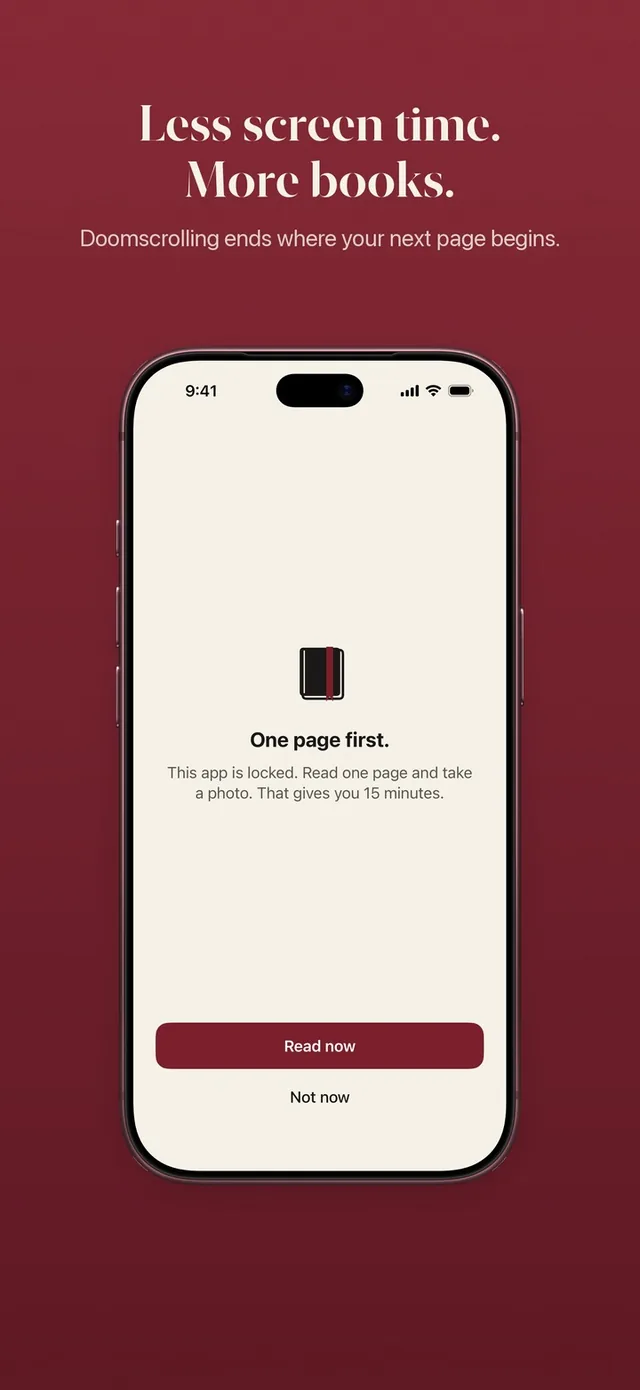
- Open a locked app. You see a calm screen, "This page can wait.", with Read now and Not now.
- Read a page of a printed book and take a live photo of the last page you read. The page is checked on your iPhone, and the photo is never saved.
- Your apps open for the minutes your rule gives, and lock again on their own when they are used up. One unlock opens all your locked apps.
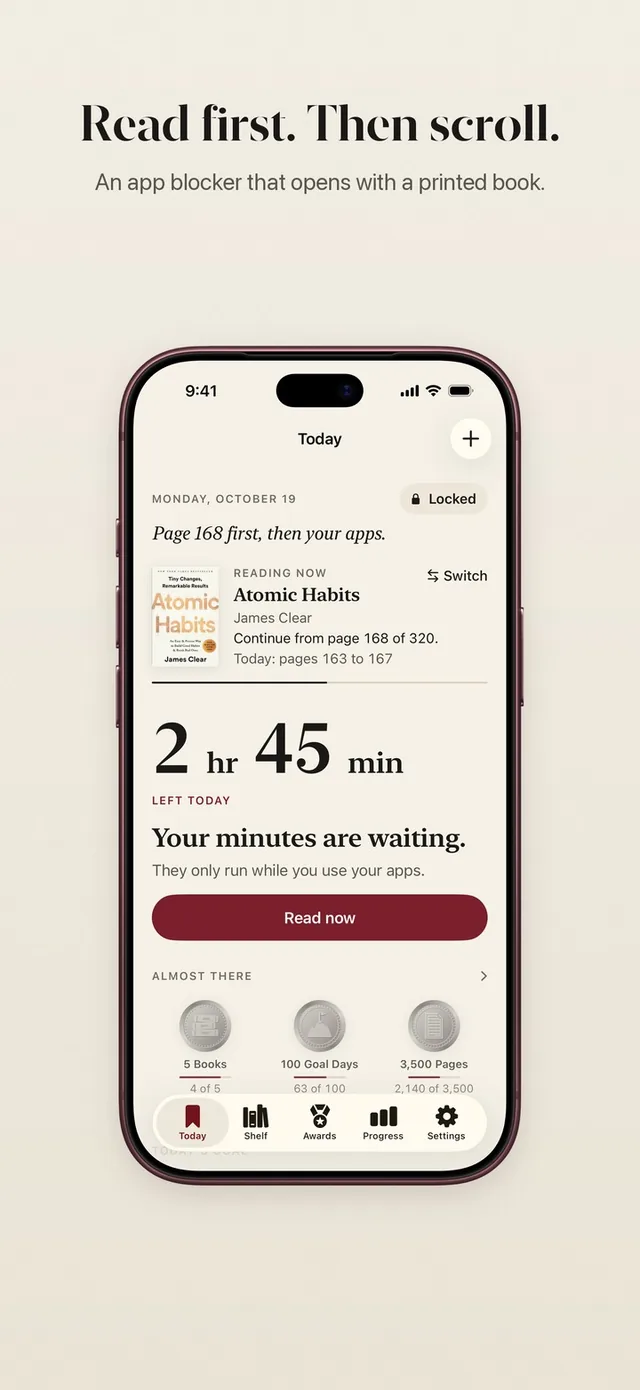
Three details make it a lock you can live with. Minutes only run while you use the locked apps, so putting the phone down saves them. Reading more than your rule asks puts the extra minutes in a bank for later that day, up to 5 hours, and the read-ahead bank empties at midnight. And at midnight every day starts locked again, so there is no stockpile of scrolling for the weekend.
What ReadFirst does not do is lock apps on a timetable. It has no schedules: your chosen apps stay locked all day until you read. If you want apps open freely during work hours and locked only at night, Screen Time is the better tool for that part, and the two can sit side by side.
Which lock to use when
Pick the lock by what you want to happen when you reach for the phone. A short guide:
| You want | Use | How firm |
|---|---|---|
| No apps after 21:30 | Downtime or a Screen Time Schedule | Firm only with Block at Downtime and a passcode you don't know |
| At most 30 minutes of social media a day | App Limits or Time Allowances | Can be ignored by default |
| A pause before a specific app | Shortcuts automation | A nudge; you can switch it off |
| Keep others out of one app | Require Face ID | Firm for others, not for you |
| Apps locked until you have read | ReadFirst | Opens only after a page you read and photograph |
Try this tonight
You can set up both kinds of lock in about ten minutes.
- Turn on Downtime Until Tomorrow (iOS 26) or add an evening window to your Screen Time Schedule (iOS 27).
- Put the phone on a charger outside the bedroom.
- Put a book where the phone used to be.
- If you have tried time locks before and ignored them, lock your top three apps with ReadFirst and set a rule you can keep on a tired day, like one page for 15 minutes.
A time lock tells you when you can't scroll. A reading lock tells you what comes first. For many people the second one is the one that sticks, because the moment you wanted to scroll now ends with a few pages read. See read to unlock for the full flow.
Frequently asked questions
Can I lock apps on iPhone for a certain amount of time?
Yes. Use Downtime or App Limits in Settings > Screen Time on iOS 26, or Screen Time Schedules and Time Allowances on iOS 27. To stop yourself from simply continuing, turn on Block at Downtime with a Screen Time passcode.
Can I lock an app until tomorrow on iPhone?
On iOS 26, Settings > Screen Time > Downtime has an option to turn on Downtime until tomorrow. Without a Screen Time passcode and Block at Downtime, you can still choose to keep using the apps.
Can Shortcuts lock an app?
Not really. A Shortcuts automation with the App trigger can react when you open an app, for example by opening another app instead, but you can switch it off, so it works as a nudge rather than a lock.
How do I lock apps until I have read?
Use an app built for it. ReadFirst locks the apps you choose and opens them for your rule's minutes after you read a page of a printed book and take a live photo of the last page you read.
Does ReadFirst lock apps on a schedule?
No. ReadFirst has no schedules. Your chosen apps stay locked until you read, and every day starts locked again at midnight.