You pick up your phone to check the time. Ten minutes later you know what a stranger had for lunch and you still don't know the time. If you want to stop checking your phone so much, it helps to admit what is going on: most checks are not decisions. They are a reflex that runs before you have a chance to think.
That is why "I'll just use it less" rarely works. You can't out-decide something that happens before the decision. What works is changing the path the reflex takes: fewer things that start it, more steps between the urge and the feed, and one step it simply can't skip.
Why you check your phone without deciding to
Checking your phone is a habit loop: a cue, a quick action and a small reward. The cue can be a buzz, a pause in a conversation, a red badge, a boring line at the store or a hard paragraph at work. The action is a tap that costs nothing. The reward is something new, and sometimes it is good, which is exactly what keeps you coming back.
Two things make this loop strong. The action is effortless, and the reward is unpredictable. You don't need to fix your character to weaken it. You need to remove some cues and make the action cost a little more.
Step 1: Find your top three triggers
Your checking has a pattern, and once you see it you can design around it. For one ordinary day, notice each time you pick up the phone without a clear reason and write down what happened just before.
Most people find their checks cluster around a handful of moments:
- Waking up: the phone is the alarm, so it is the first thing in your hand.
- Transitions: finishing a task, waiting for a kettle, walking to a meeting.
- Discomfort: a hard email, a dull page, a moment of feeling alone.
- Notifications: a buzz or a badge that promises something new.
- The evening sofa: tired, nothing planned, phone in reach.
Pick the three that happen most. You will plan for those, not for every check in the day. The activity report in Settings > Screen Time also shows which apps take most of your time, which makes this step quicker.
Step 2: Turn off the notifications that start the loop
Every notification is a cue someone else set for you, so cutting them removes checks before they begin. Go through Settings > Notifications and ask one question for each app: do I need to know this the moment it happens?
A simple rule set that works for many people:
| Keep live | Bundle or silence | Turn off |
|---|---|---|
| Calls, messages from people | Email, news, shopping | Social media likes and comments |
| Calendar, reminders | Group chats (mute) | "You might like" and streak nags from feeds |
| Banking and delivery alerts you act on | Most other apps | Games |
For the middle column, the Scheduled Summary in the notification settings collects non-urgent notifications and delivers them at times you choose, for example 12:00 and 18:00. You still see everything. You just stop being interrupted by it.
Turn off badges too. A red number on an icon is a small, permanent invitation to check.
Step 3: Add friction between your thumb and the feed
Friction works because the reflex is lazy: when the path gets a few steps longer, many checks simply don't happen. You are not banning anything. You are making the easy thing a little less easy.
Try these, one at a time:
- Move the pull apps off your Home Screen. Put them in a folder on the last page, or only in the App Library. Search still finds them, but your thumb stops opening them by accident.
- Log out of the browser versions. If a site needs a password, a lot of idle visits end at the login screen.
- Make the phone duller. Grayscale (Settings > Accessibility > Display & Text Size > Color Filters) takes the shine off colorful icons and feeds.
- Give the phone a home. A charger in the hallway or a drawer in your desk. If the phone is not in your pocket, the reflex has nothing to grab.
- Put the replacement within reach. A book on the desk, the sofa, the nightstand. When the hand moves, it needs somewhere else to land.
Step 4: Put a gate in front of the apps the reflex opens
Friction slows the reflex down, but a gate stops it until you have done something on purpose. This is the step most advice skips, and it is the one that matters most for the apps you open without thinking.
Apple's built-in Screen Time limits are a soft gate. Apple's own guide says that by default, Screen Time limits can be ignored once reached, and the limit screen offers a way to keep going. When you are tired, that one tap wins almost every time. We go deeper into this in why Screen Time limits are so easy to ignore.
A real gate has three qualities:
- It can't be skipped with one tap. The reflex is fast. The gate has to be slower than the reflex.
- It asks for something you actually want to do. A pause or a breathing exercise helps, but a gate that leaves you with something good afterwards is easier to keep.
- It is the same every time. No negotiating with yourself at 23:00.
How ReadFirst turns the check into a page
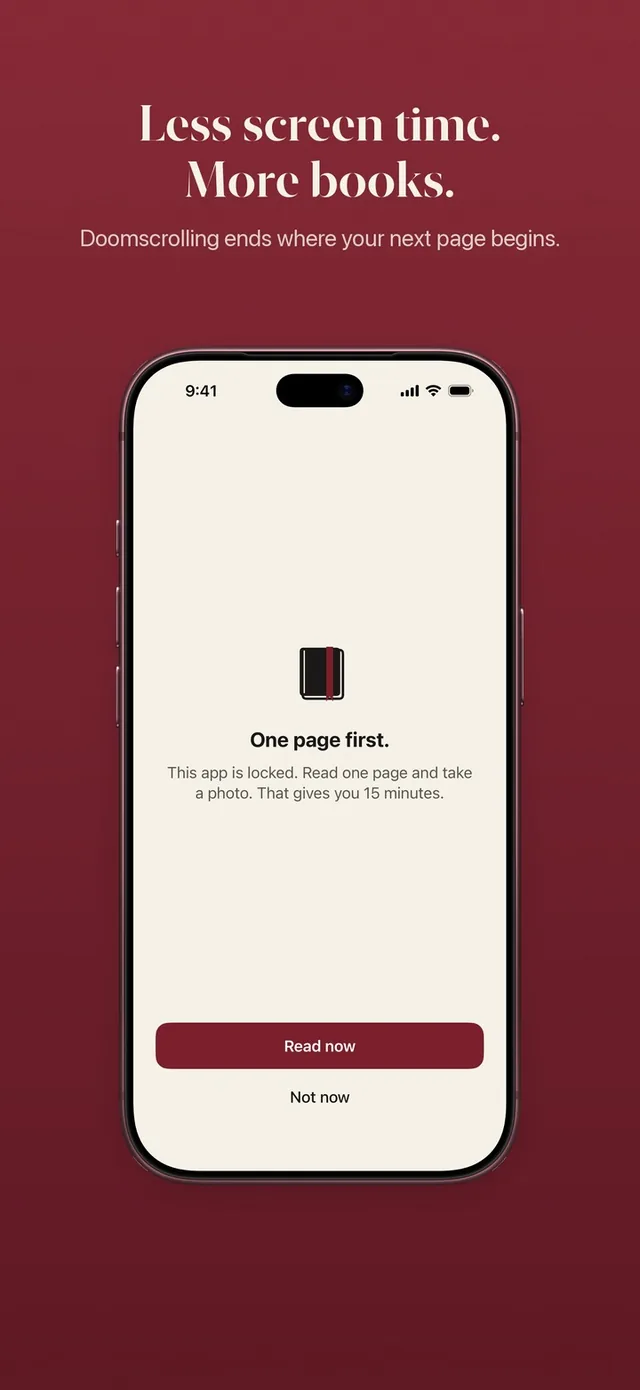
ReadFirst puts a book between you and the apps you check most. You choose the apps and websites to lock, and Apple Screen Time keeps them closed. When your thumb opens one, you see a calm screen that says "This page can wait." with Read now and Not now.
To get in, you read a page of a printed book and take a live photo of the last page you read. The page is checked on your iPhone and the photo is never saved. Then your locked apps open for the minutes your rule gives you, for example one page for 15 minutes. You set that rule yourself, and you can change it any time in your reading rule.
Two details make it fit how checking really works:
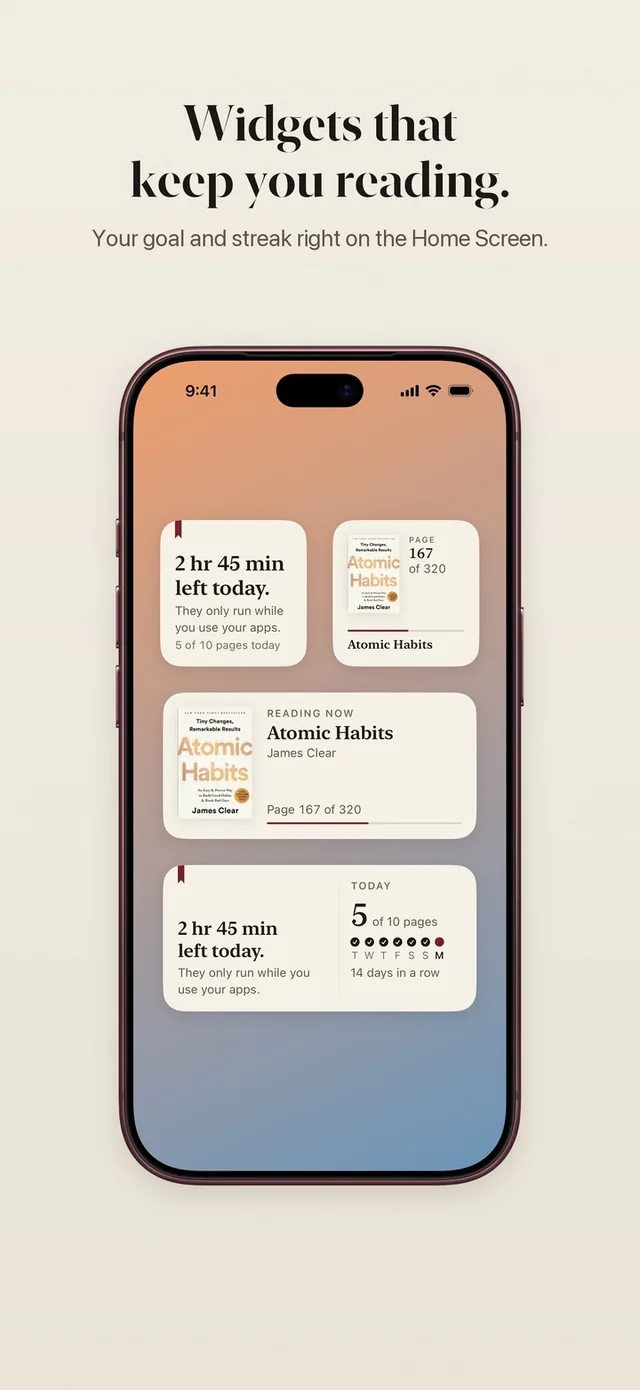
- Minutes only run while you use the locked apps. Look at a message for two minutes, put the phone down, and the rest of your minutes wait for later.
- Reading ahead is allowed. Read more than the rule asks and the extra minutes go into a bank for later that day, so a long reading session in the morning can cover a few checks in the afternoon.
Here is what changes in practice. The check that used to be automatic now starts with a choice: read a page, or put the phone back. Many times you will put it back. And on the days you read, those pages add up to a book you actually finish. You can see the whole flow on the read to unlock page.
A simple plan for the next 7 days
You don't need to change everything at once to stop checking your phone so much. Use one week to set it up, one step a day.
- Day 1: Write down your three biggest triggers.
- Day 2: Turn off every notification that is not from a person or something you act on. Turn off badges.
- Day 3: Move your top three pull apps off the Home Screen.
- Day 4: Give the phone a home outside your pocket for the evening, and put a book there instead.
- Day 5: Put a gate on your top three apps, with Screen Time or an app like ReadFirst.
- Day 6: Keep the phone out of the bedroom. Use a cheap alarm clock.
- Day 7: Look at your week in Screen Time and compare it with how day 1 felt. Keep what helped and drop what didn't.
Expect the first few days to feel itchy. The urge to check does not vanish, it just finds the gate closed. After a week or two, many people notice the urge itself gets quieter, because it is rewarded less often.
Make the first check a page
Checking your phone less is not about being stricter with yourself. It is about letting the moment you reach for the phone lead somewhere better. ReadFirst makes that somewhere a page of your book: the feed is still there, it just comes after you have read. If you want to try it, set a rule you can keep on a tired day and start with your top three apps.
Frequently asked questions
Why do I keep checking my phone for no reason?
Most checks are a habit, not a decision: a cue like boredom, a pause or a notification triggers a quick tap that sometimes brings something new. Removing cues and adding steps before the apps you check most weakens that loop.
Is it better to delete social media apps or block them?
Deleting works if you are ready to leave for good. Blocking keeps the apps but puts a step in front of them, which suits most people who still want to use them on purpose.
Do Screen Time limits help me check my phone less?
They help you see your habits and add a reminder. By default, Apple says Screen Time limits can be ignored once reached, so for many adults they work as a nudge rather than a gate.
How does ReadFirst stop me from checking apps?
It locks the apps you choose with Apple Screen Time. To open them, you read a page of a printed book and take a live photo of it, and your apps open for the minutes your rule sets.
Does ReadFirst lock my whole phone?
No. Only the apps and websites you choose are locked. Calls, maps and every app you did not choose work as usual.